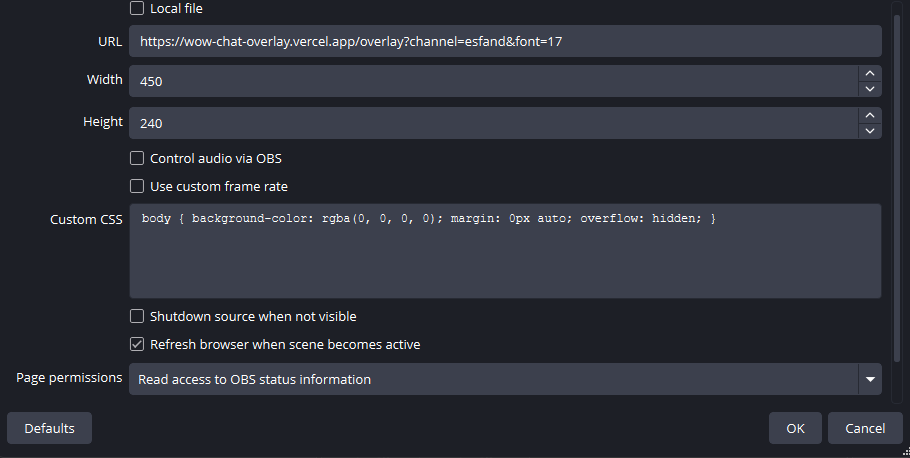
Your channel
The name from your channel address: twitch.tv/thisname
Appearance
Size scales the whole window, frame included. 100% matches the original World of Warcraft chat window, which is what this overlay is built to. Go higher only if OBS scales your canvas down (a 1080p canvas sent out as 720p, for example); rendering bigger then keeps the text crisp.
Font size changes only the text inside the window. 15px is the World of Warcraft value. Emotes grow with it, and a bigger font means fewer lines fit into the same box. The count next to your link tells you how many.
Text weight compensates for OBS. A browser source is rendered with a transparent background, so it cannot use subpixel antialiasing and text comes out thinner than it looks here. Judge this one in OBS, not in the preview. The preview will always look heavier.
Language only changes the wording of the channels and the tabs, not the chat itself. The words are taken from the game's own files for each client language, so they read exactly like they do in WoW. Only languages the bundled font covers are listed here.
Messages
Fade out after hides a message that many seconds after it arrived. 0 keeps every message until it scrolls off the top by itself.
Third-party emotes picks which services to pull in. Each one loads your
channel's own emotes plus that service's global set. Unticking all three is fine too.
Twitch's own emotes always work either way; switching a service off only means
its codes (like monkaS) stay plain text.